1Write
Write the rythmo band
The band you actually record from.
For adapters, dubbing directors, actors working from home studios
The band you actually record from.
The problem
A band that is two frames out does not show while writing. It shows on the floor, with twelve people waiting.
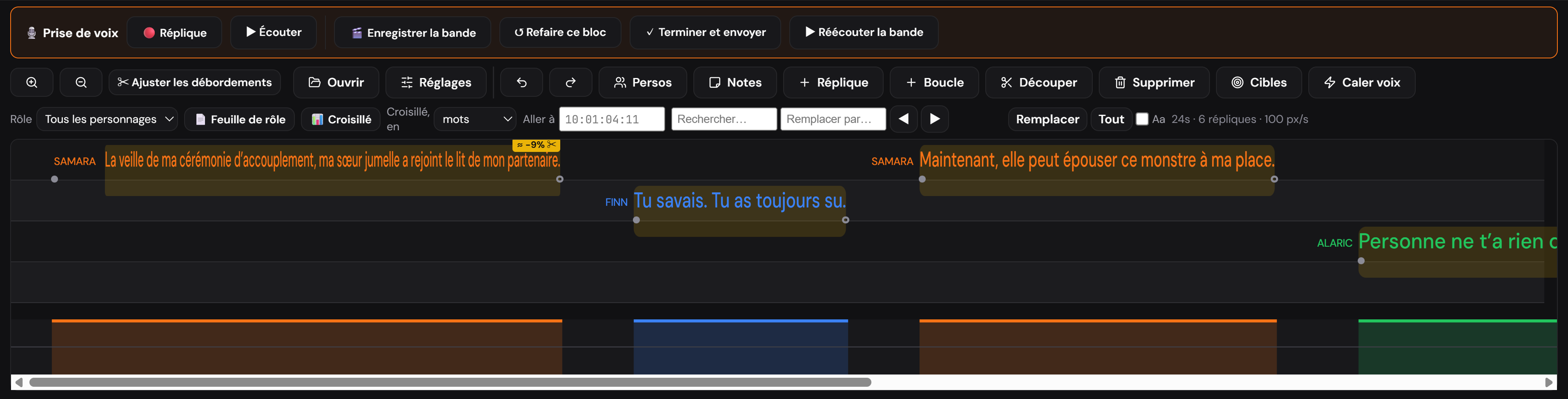
A frame-accurate multitrack band, one track per character, with the waveform under the text. It reads in the booth, it exports to DetX, and an actor can display their role alone.
The answer
Frame-accurate alignment
Each block moves frame by frame from the keyboard: the end, the start, or the whole block. The project frame rate is adjustable, and the timecode reference follows dubbing practice.
- How do I move a block by a single frame? #
- Ctrl and the left/right arrows move the end of the block. Ctrl+Shift moves the start, Ctrl+Alt moves the whole block without changing its length. The shortcut works even when the cursor is inside the block’s text.
- My timecode starts at 10:00:00:00. Is that normal? #
- Yes, that is the usual dubbing reference, and it is adjustable in the band toolbar. An episode starting at zero therefore displays as 10:00:00:00.
Actor mode
Pick a role and the band shows only their lines. Timecodes do not move: the band remains the episode’s own, only the other voices are hidden. That is what makes it usable in a home studio.
- Does the actor see a band re-timed to their lines only? #
- No, and that is deliberate. A compressed band would no longer match the picture and the recording would land off. Other characters’ lines are hidden; the duration and timecodes stay those of the episode.
- Can I export one character’s text alone? #
- Yes: the role sheet gives their lines in film order, timecoded, with the word count, useful when an actor is paid by the line.
- In practice, how does an actor record from home? #
- They open the episode, pick their role, and click **🎬 Enregistrer la bande** (record the band): the video starts, its own sound is muted automatically so it does not bleed into the take, and the microphone records continuously while the band scrolls. One file comes out at the end, with every line placed at its timecode — no second piece of software, and nothing to realign afterwards.
- Does it produce one file per line? #
- No. **🎬 Enregistrer la bande** produces **one single file** for the whole session, every line placed at its timecode in the episode — not a separate per-line take to stitch back together in the edit.
- Can I pause partway through recording? #
- Yes: **⏸ Pause** stops right where you are, without sending anything. During the pause you can listen to a line already recorded or redo a block, then resume — and only click **✓ Terminer et envoyer** (finish and send) once the session is genuinely done.
- Do I need a second screen? #
- No, but it is more comfortable: the picture on one side, the band on the other. A television on HDMI does the job, and that is what most booths use.
- What if I fumble a line? #
- During continuous recording, **↺ Refaire ce bloc** (redo this block) rewinds exactly to the start of the line under the playhead and stops there: you click to resume, and the new take replaces the old one in the edit, with no need to start from a blank band. To rehearse a scene before recording, the loop replays the same passage without hunting for it each time.
Density and reading
Track height has three settings, because the right density depends on reading distance. The character name stays visible even on the episode’s very first line.
- Tracks are too far apart, I see few lines. #
- The Density control in the band toolbar offers tight, normal or wide. Your choice is remembered.
Specifications
| Frame rate | adjustable per project, 25 fps by default |
|---|---|
| Timecode reference | adjustable, 10:00:00:00 by default, the dubbing convention |
| Tracks | one per character, three height settings |
| Alignment | frame by frame, from the keyboard: end, start, whole block, track change |
| Import | SRT, VTT, DetX, AAE, TTAL, TTML, TXT, Excel |
| Export | DetX, SRT, VTT, TXT, DetX and SRT in original or adapted version |
| Network | none, except for assisted rewriting |
Learning to use it
Step-by-step walkthroughs with screenshots: Align a rythmo band on an episode, Record an actor in a home studio, Correct a word across the whole episode.